0 / 5000
Flying Car AI Generator: Turn Car Photos into Takeoff Videos
Make your own car fly with AI. Use a vehicle photo, a video reference, and a prompt to create a cinematic flying-car clip for social posts or creative campaigns.
Flying-Car Brand Reveals and Highway Flights
Explore a branded city reveal and a highway flight sequence created with vehicle images, video references, and tailored prompts.
Original Image
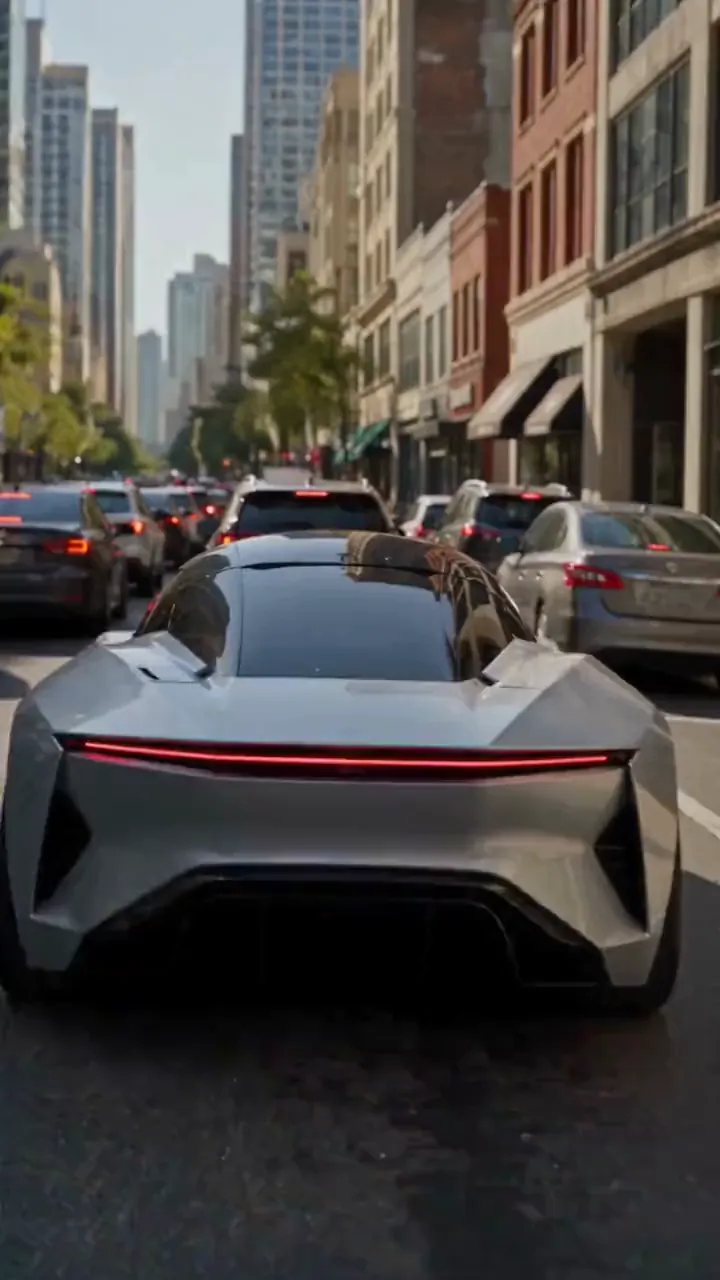
Video
Prompt
Create a photorealistic 15-second automotive scene on an ordinary modern city road in natural daylight, following the shot sequence below. REFERENCE ROLES <<<hint/1.webp>>> is the replacement vehicle. Replace the main vehicle from <<<hint/1.mp4>>> with the vehicle shown in <<<hint/1.webp>>>. Preserve its body shape, paint color, proportions and wheels throughout every shot. Use only the vehicle itself from <<<hint/1.webp>>>. Use <<<hint/1.mp4>>> as the reference for the vehicle’s jet-powered takeoff, flight behavior and strong downward jets. Extend that motion naturally into the controlled landing described below. <<<hint/1_1.webp>>> is the replacement logo. Replace the original logos in the existing roadside advertisements from <<<hint/1.mp4>>>, including billboards and wall advertisements, with the logo from <<<hint/1_1.webp>>>. Remove the original advertising logos completely. Reproduce the design, colors and lettering in <<<hint/1_1.webp>>> faithfully, without redesigning, misspelling or combining it with another logo. Retain the existing advertising structures and layout. Fit the replacement logo naturally to each advertising surface, matching its perspective, lighting and material. Replace only the advertising artwork; do not create additional advertising placements. Apply <<<hint/1_1.webp>>> only to roadside advertisements. Never place it on the vehicle. Keep the vehicle free of brand advertising throughout. Keep all brand advertisements outside the camera frame until after landing. Apart from the vehicle motion and existing advertising references specified above, use the daylight city setting and shot plan below. VISUAL STYLE Restrained documentary camera work, everyday traffic, natural reflections, realistic shadows and believable vehicle weight. Maintain the same replacement vehicle consistently across every cut. 0–3s: Street-level rear three-quarter tracking shot. The vehicle slows behind a short traffic jam. Ordinary shops, concrete buildings and parked vehicles line the street. Keep brand advertisements out of frame. 3–6s: Cut to a low roadside view. Strong white cold-gas jets fire straight downward beneath the vehicle, blowing dust across the asphalt. The vehicle slowly lifts until its wheels clear the stopped traffic. Attach the jets naturally beneath the replacement vehicle and keep them synchronized with its movement. 6–10s: Wide side tracking shot. The vehicle flies forward over the queue, upright and level, with continuous strong downward white vapor jets. Keep the vehicle, its moving shadow and the traffic together in frame. Maintain believable weight and steady forward momentum. 10–12s: Rear three-quarter view. The vehicle clears the last stopped vehicle and descends into an empty lane, with downward jets still running. Reduce its altitude smoothly while maintaining a stable, upright posture. 12–15s: Low roadside shot. The tires touch down, the suspension compresses and the jets shut down. Only after landing, the vehicle accelerates past the existing roadside advertisements, whose original logos have been replaced with the exact logo from <<<hint/1_1.webp>>>. Frame the moving vehicle and an existing roadside billboard together for the final shot. Keep the vehicle free of brand advertising. SOUND City traffic, idling vehicles, ignition hiss, cold-gas thrust, tire touchdown and an electric motor accelerating away.
Create Your Own Flying-Car Effect
Guide the vehicle, motion, and scene with visual references and a prompt.
Start from a Car Photo
Use your vehicle photo and a flight reference to create a highway scene with a takeoff, a flight over traffic, and a return to the road.
Brand Reveals with Your Logo
Combine a vehicle image, a logo, and a video reference to develop a flying-car promotion with branded roadside advertisements.
Recreate the Tesla Roadster Flight
Replace the main car in the reference clip with your own vehicle. Use the clip to guide the jet-powered takeoff, airborne roll, original setting, camera movement, and timing.
Explore Multiple Video Models
Start with Seedance 2.5 or try Seedance 2.0, Wan 3.0, Kling 3.0, and other available models to explore different interpretations of your flying-car idea.
Take Your Car Content Beyond the Road
Develop an idea from a familiar vehicle and a motion reference, then refine it into a clip you can share or present.
Start with a Creative Direction
Choose a starting direction for your video, then adapt the references and prompt instead of writing the entire scene from scratch.
Make the Concept Your Own
Make a familiar vehicle the focus of an unexpected flying scene, using your photo to guide its appearance.
Build on Motion You Already Like
Show the flight you have in mind with a reference clip, making it easier to communicate the action and camera direction.
Compare Creative Directions
Compare generated versions in your history and refine the vehicle's appearance, movement, or framing one step at a time.
Flying-Car Videos for Creative Projects
Develop flying-car clips for social content, automotive campaigns, and visual storytelling.
Automotive Social Clips
Turn a vehicle photo into a fictional flying-car clip for TikTok, Instagram, and other social channels.
Brand Promotion Concepts
Explore an automotive campaign idea using a vehicle and brand identity relevant to your project, then share the concept with your team.
Car Enthusiast Edits
Create a personal take on the Tesla flying-car clip for car communities and fan posts.
Story and Pitch Visuals
Use an imagined vehicle flight as a shot concept for a storyboard, presentation, or creative pitch.
How to Create an AI Flying-Car Video
Choose a hint, customize your references, and generate your video.
Choose a Hint
Choose a hint that matches the video you want to make.
Customize Your References
Add a clear vehicle photo and the references needed for your chosen hint. Adjust the motion prompt and available video settings.
Generate and Review
Generate your video, then review the vehicle's appearance and motion in your creation history. Adjust the references or prompt to refine the result.

More AI Tools for Creative Videos
Explore image and video tools for cinematic effects, automotive concepts, and social content.