0 / 5000
Reference to Video AI Generator for Consistent AI Videos
Turn reference images, video clips, and audio into smooth, visually consistent AI videos. Keep characters, products, scenes, motion, and sound aligned while creating UGC ads, product demos, social clips, and story concepts.
Reference to Video AI Examples
See how portraits, character designs, product photos, objects, fashion references, scene images, style frames, audio cues, and reference clips can guide talking avatars, product demonstrations, UGC-style ads, social clips, cinematic moments, brand visuals, and animation previews.
Original Image
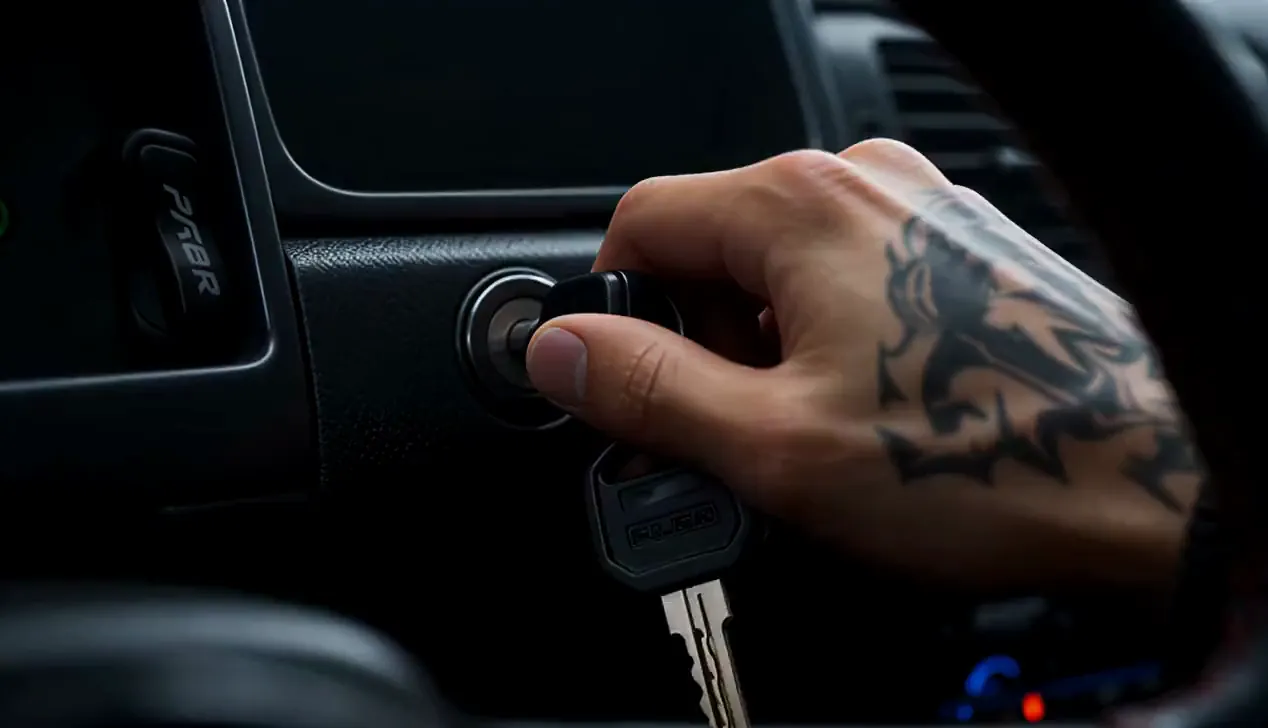
Video
Prompt
Cinematic anime short film clip, 15 seconds. Underground street tunnel at night, long dark corridor, walls completely covered in colorful graffiti tags, wet glistening asphalt reflecting dim tunnel lights, raw illegal underground energy, nobody around. CHARACTER: Rex, light brown skin, sharp angular face, short messy black Caesar cut with fade, dark cold intense eyes, black leather jacket, white tee, dark joggers, gold chain. CAR: Nissan Skyline R34, wide body kit, lowered, matte finish covered in layers of graffiti tags in white, red and green spray paint, worn and chipped, aggressive and raw. [0:00–0:01] HOOK — Extreme close-up of the ignition key turning. Engine roars to life instantly. [0:01–0:02] Rex's cold eyes in the rearview mirror. He grabs the gear shift and slams into first. [0:02–0:13] MONTAGE — Ultra-fast cuts every half-second, synced hard to a heavy bass beat. Rotate constantly between: front wide shot of the car launching forward; low-angle tires screeching across wet asphalt with water spraying; speedometer needle jumping; side angle of the car flying through the tunnel; graffiti walls blurring; exhaust flames shooting out; overhead view of the car; close-up of Rex's jaw, tight and stone-cold; gear shift slamming; headlights cutting through darkness; rear angle of taillights; close-up of Rex's unblinking eyes; dashboard shaking inside the car; bumper-level shot of the tunnel rushing past; speedometer maxed out. Every angle and every second must be different; never repeat the same shot twice. [0:13–0:15] The car vanishes into darkness. Taillights fade. Silence. Cut to black. Text: ZERO TO SIXTY. Cinematic cel-shaded 3D anime, semi-realistic CGI, hand-painted textures, Unreal Engine quality, dark moody tunnel lighting, neon reflections on wet asphalt, film grain, heavy bass music layered with engine roar and tire screech throughout, ultra-fast cutting rhythm, premium anime film quality.
Core Features of Reference to Video AI Generator
Reference to Video combines optional image, audio, and video references, prompt-based creative direction, sound-enabled output, and flexible generation settings in one workflow.
Multimodal Reference Guidance
Use optional images, video clips, and audio to guide the character, product, environment, visual style, motion, or sound direction for the generated video.
Consistent Characters and Products
Use clear references to help keep important facial traits, character styling, product features, wardrobe, colors, and object details recognizable as the scene moves.
Reference-Guided Motion and Sound
Combine reference clips, audio, and prompt direction to guide actions, expressions, camera movement, pacing, atmosphere, and sound.
Coherent Scenes and Stories
Bring character, product, environment, style, motion, and sound cues together to create more connected scenes, campaign concepts, and short-form stories.
Advantages of Reference to Video AI Generation
Reference-guided generation helps creators, brands, agencies, and e-commerce teams move from existing visual material to a coherent video concept with less setup and clearer creative control.
Start from an Existing Visual Direction
Build from character art, product photography, wardrobe references, scene frames, audio cues, or reference clips instead of describing every creative detail from text alone.
Improve Visual Continuity
Give the model concrete visual anchors for faces, products, objects, and styling so key details have a better chance of staying recognizable as the scene moves.
Explore Motion without Rebuilding the Look
Reuse the same references while testing different actions, expressions, camera moves, pacing, moods, sound directions, durations, and formats for new creative variations.
Create Faster Previews and Campaign Drafts
Turn approved stills or reference footage into motion concepts for product demos, social ads, creator briefs, animation previews, and storyboards before a full production.
Use Cases for Reference to Video AI Generator
Reference to Video supports character clips, product demonstrations, UGC-style ads, social content, brand visuals, cinematic concepts, and animation previews guided by existing images, audio, or video.
UGC Ads and Social Clips
Combine creator, product, setting, audio, or reference-video guidance with a concise action prompt to draft sound-enabled ads, social hooks, and creator-style campaign concepts.
Product and Brand Videos
Animate product photos, objects, packaging, lifestyle scenes, and brand references for demonstrations, reveals, landing-page visuals, and promotional clips.
Consistent Characters and Avatars
Use portraits or character designs to guide appearance and styling while the prompt defines expressions, gestures, camera behavior, and the surrounding scene.
Storyboards and Visual Concepts
Turn scene references, fashion images, style frames, or sample footage into compact motion previews for pitches, creative reviews, animation planning, and pre-production.
How to Use Reference to Video AI Generator
Create a reference-guided AI video in three steps: add visual references, describe the motion and scene, then choose the available output settings and generate.
Step 1: Add Your Reference Media
Optionally add images, audio, or video that clearly communicates the character, product, object, setting, style, or sound direction you want the result to follow.
Step 2: Describe the Video
Write a focused prompt covering the main action, expression, camera movement, lighting, mood, pacing, and any visual details that should remain consistent.
Step 3: Set the Output and Generate
Choose the available resolution, duration, aspect ratio, and audio options, generate the video, then review the result and refine the references or prompt if needed.

Explore More Advanced AI Video Tools for Video Creation
Explore more AI tools for video creation, UGC ads, product clips, and short-form creative testing.