What happens after 100+ rounds of “just one more change”? How far can you push an image before it starts to drift? Meet Seedream 5.5: precise local edits, consistency across repeated revisions, more natural visuals and native transparent assets. Explore what’s new below. 👇
Seedream 5.5 AI Image Generator for UGC Product Campaigns
Create product photos and UGC-style campaign stills with Seedream 5.5 on UGC Maker. Combine natural lighting and product detail, then refine backgrounds, labels, and ad copy through targeted edits.
Loading...
Product Photos and Campaign Stills with Seedream 5.5
Start from a text brief or references. To continue editing a result, upload that image and describe the next change.
Turn product references into listing photos, creator-style shots, and launch graphics. Describe the product features to retain, then refine the setting, light, or campaign line in each edit.
Seedream 5.5 Examples: Product Variations, Scene Edits, and Launch Layouts
These examples start from a ceramic espresso cup. Compare three treatments of the same product, then a reference against a revised setting and a launch graphic whose typography has been moved. Open a prompt to try the same composition.
One Subject, Three Treatments
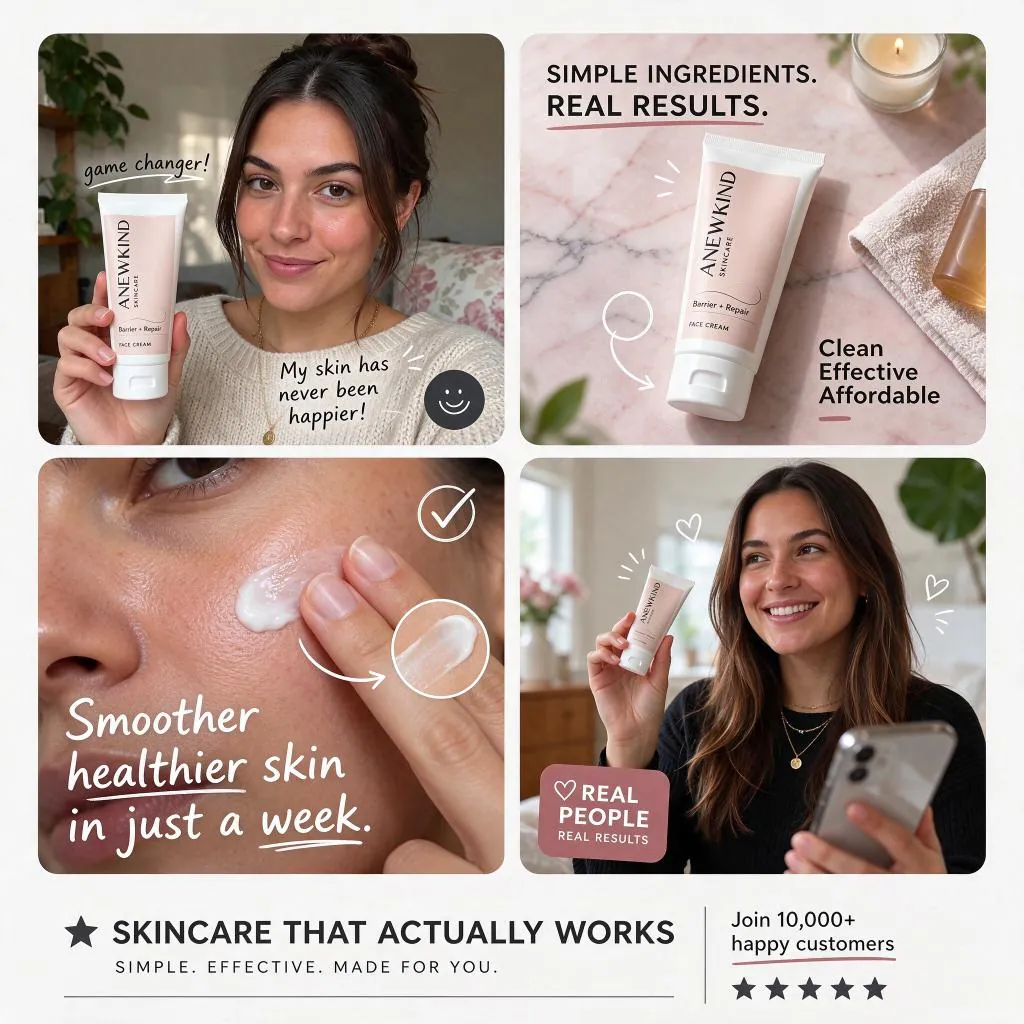
Prompt
Create a square English-language skincare UGC advertisement with four rounded photo panels on a clean white background: a woman holding a pale-pink face cream tube at home, a product still life on pink marble, a close-up of cream applied to a cheek, and a smiling customer holding the product. Use natural daylight, realistic skin, handwritten annotations and a clear footer. Include the headline "SKINCARE THAT ACTUALLY WORKS" and the brand "ANEWKIND".
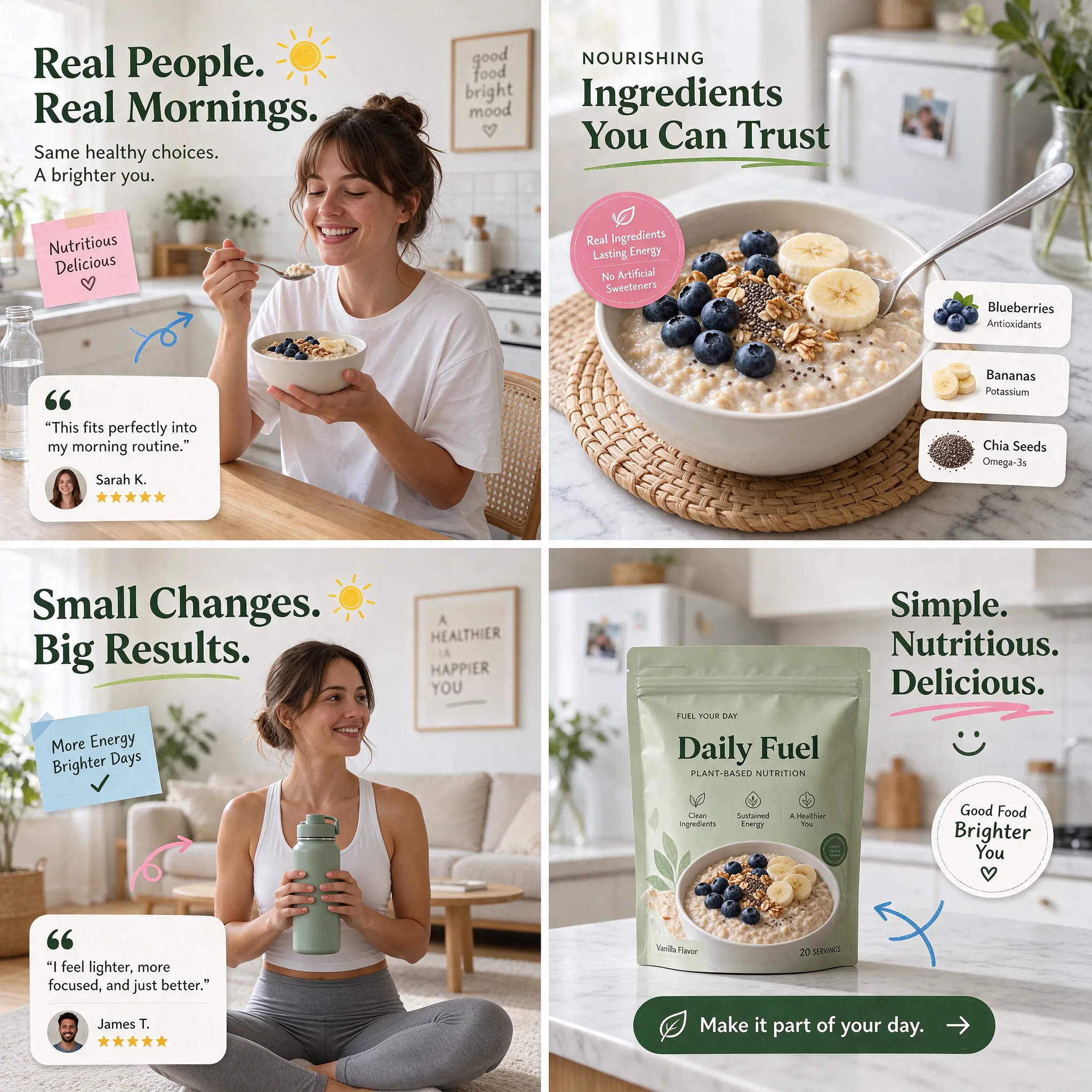
Prompt
Create a square four-panel UGC advertisement for Daily Fuel plant-based nutrition. Show a woman enjoying oatmeal in a bright kitchen, a close-up of oatmeal with blueberries and banana, a woman holding a green water bottle, and a sage-green product pouch. Use dark-green English headings, pink and blue handwritten accents, warm daylight and authentic lifestyle photography. Include "Real People. Real Mornings.", "Small Changes. Big Results." and "Make it part of your day."
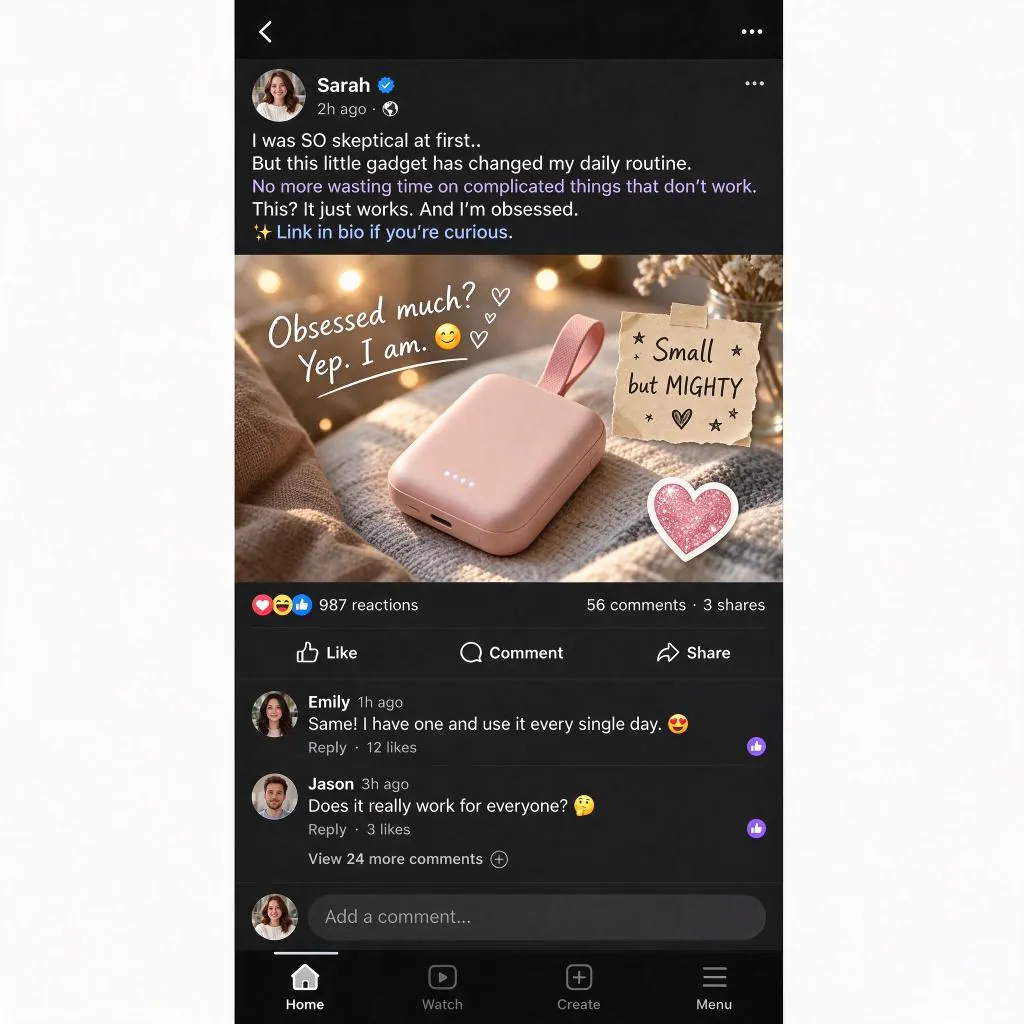
Prompt
Create a square English-language UGC ad featuring a dark-mode mobile social feed centered on a white background. The post promotes a small blush-pink portable gadget with a fabric loop, resting on a knitted blanket in warm light. Include a casual customer caption, handwritten "Obsessed much? Yep. I am.", a "Small but MIGHTY" note, reactions, comments and mobile navigation. Keep the product as the visual focus.
Edit the Setting
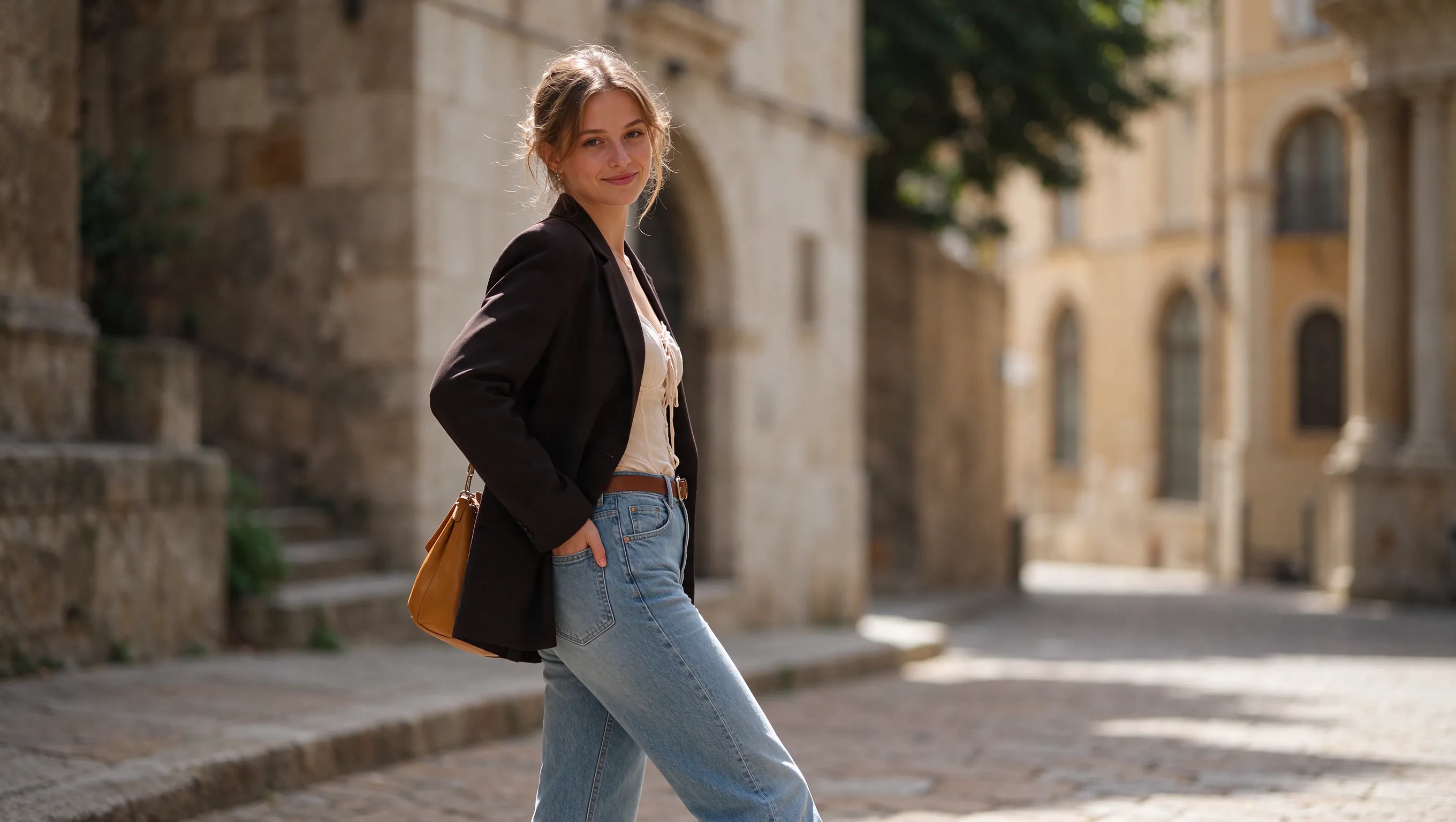
Original (Prompt)
Create a realistic portrait of a European woman aged 20–25 on a sunlit historic stone street. She wears a dark blazer, a cream gathered blouse, blue jeans, a brown belt and a tan shoulder bag. Her brown hair is loosely tied back. She turns toward the camera with a gentle smile and one hand in her pocket. Use natural sunlight, shallow depth of field and a 16:9 horizontal composition.
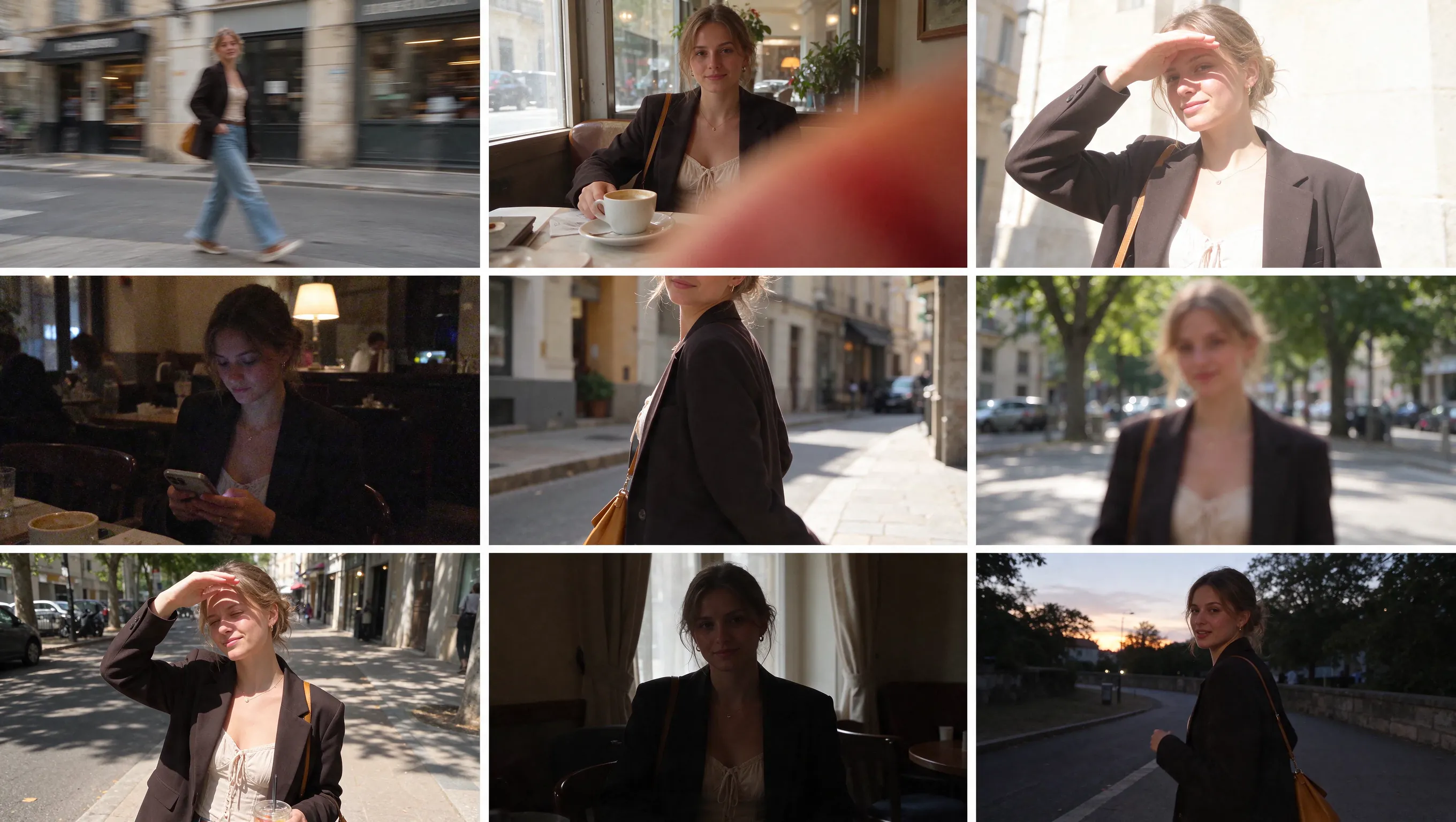
Generated (Prompt)
Using the supplied character reference, create a 3x3 grid collage containing nine different snapshots. Simulate a collection of candid, amateur and "failed" photographs taken by a non-professional photographer. Keep the character design, hairstyle and clothing consistent with the reference, while placing her in realistic outdoor and indoor settings such as streets, cafes and beside a window. Apply specific photographic flaws across the panels: 1. Motion blur from camera shake. 2. A finger accidentally covering the lens, producing a red or orange blur. 3. Overexposure caused by strong sunlight. 4. Heavy digital noise or grain typical of a phone camera in low light. 5. Poor framing that crops parts of the head or body. 6. An out-of-focus subject. Vary the lighting between harsh daylight, dim interiors and dusk or evening. The overall atmosphere should feel raw and unretouched, like casual smartphone photo sharing.
Revise a Poster Layout
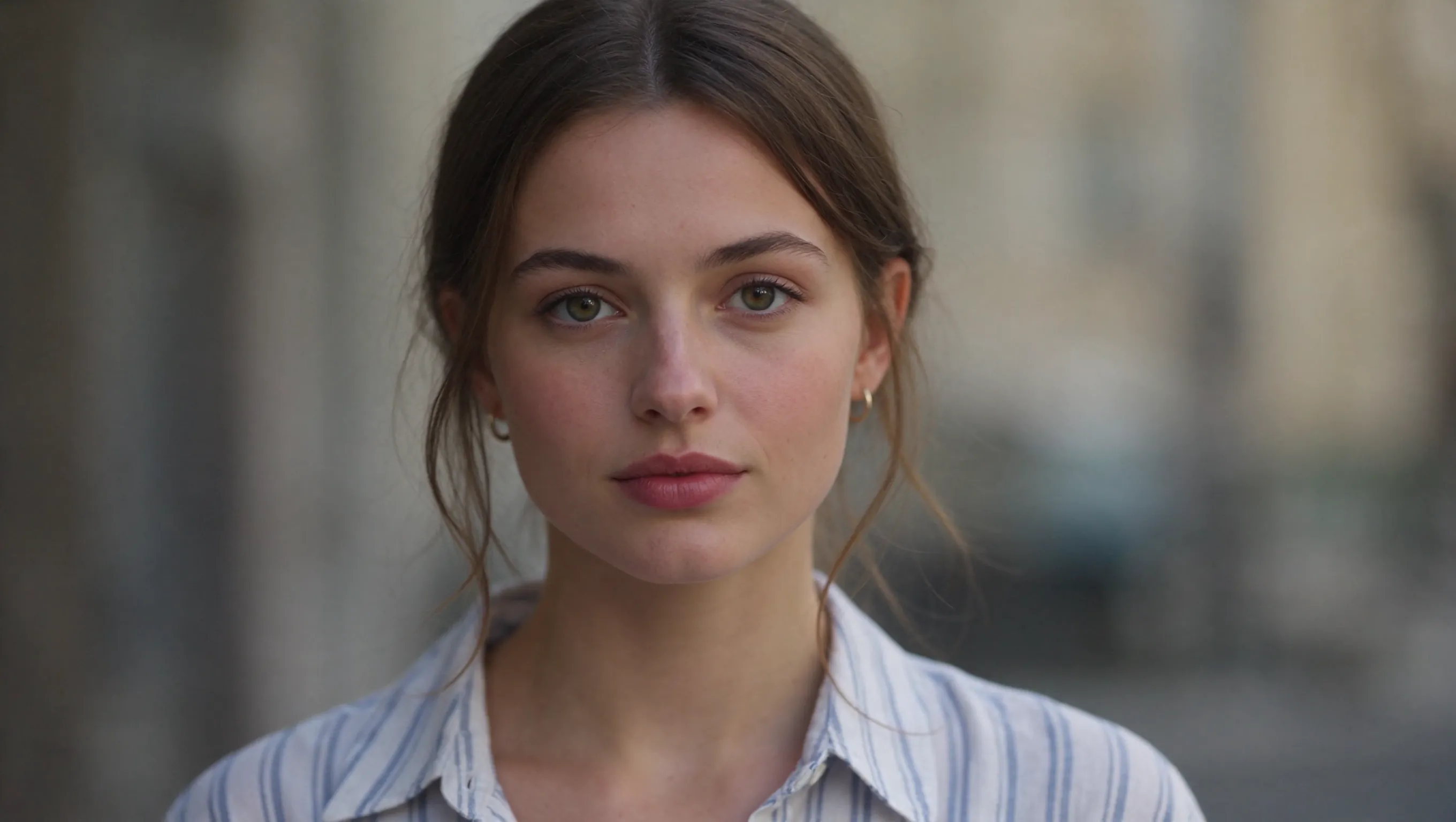
Original (Prompt)
Create a photorealistic portrait of a European woman aged 20–25. She has softly tied brown hair, green-hazel eyes, natural skin texture, small gold hoop earrings and a pale blue striped shirt. Center her face, looking directly toward the camera with a calm expression. Use soft natural light, a gently blurred neutral background and a 16:9 landscape frame.
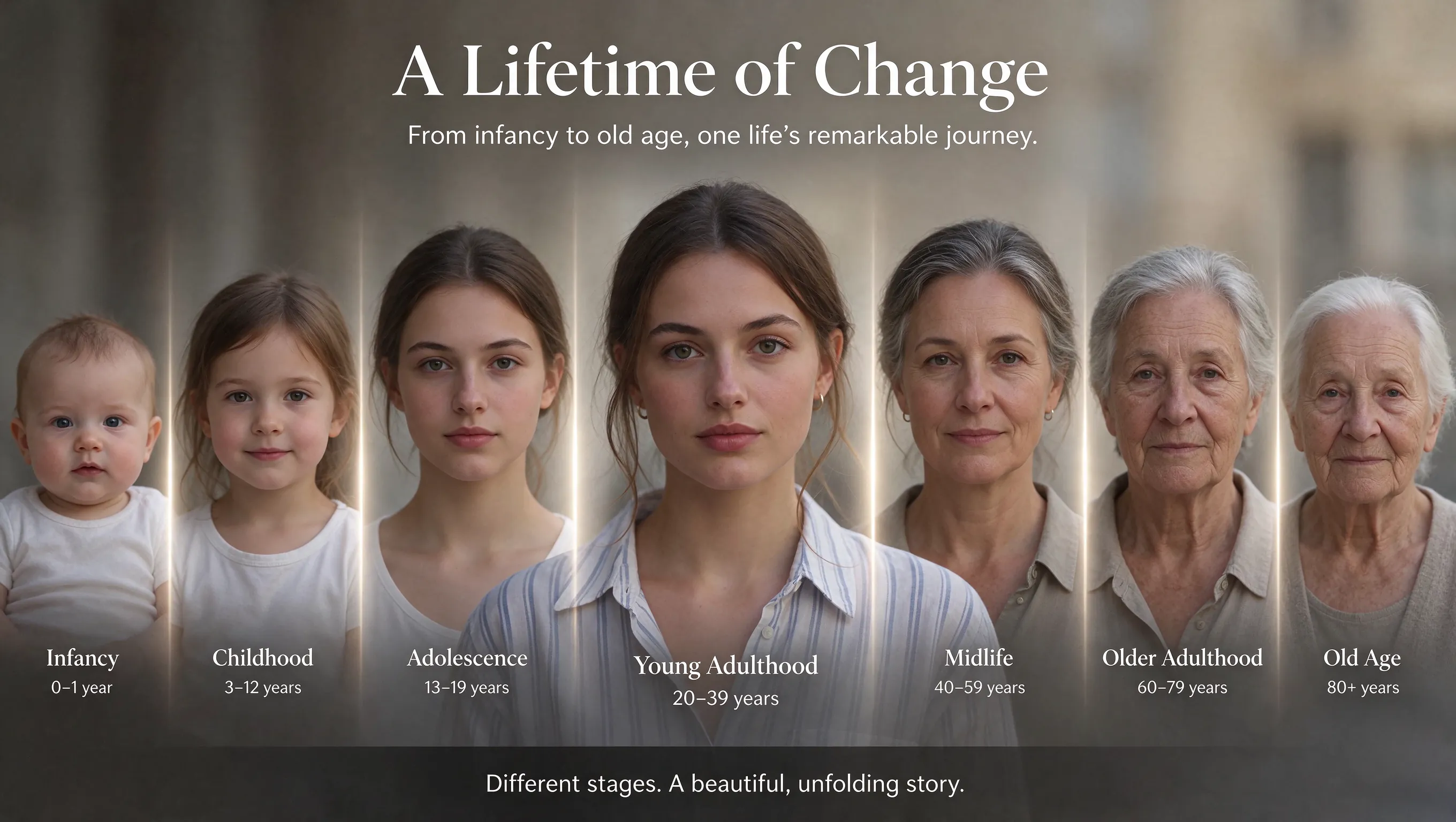
Generated (Prompt)
Using this image as the base, design an English-language image showing this person changing from infancy to old age.
Build Campaign Images Around Your Product
Keep the product at the center while developing realistic scenes, readable copy, and related campaign images.
Revise the Scene Around the Product
Change a surface, prop, or background while asking to retain the product shape, color, and label. More stable multi-turn editing helps you build on the product shot you already selected.
Make Products Feel Present in the Scene
Create natural material reflections, contact shadows, and believable proportions. For a hand-held shot, describe how the hand grips the product and where the light falls.
Bring Labels and Ad Copy into Focus
Compose a headline, supporting offer, and product label with clear text hierarchy. Generate multilingual text from the exact wording you supply for each campaign version.
Combine Product and Scene References
Use product views to define shape and packaging, and a separate reference for the setting. Specify scale, perspective, and light direction so the product belongs in the scene.
Product Images for Listings, Creator Posts, and Launches
Develop product visuals for different campaign tasks while keeping packaging, materials, and visual direction connected.
Product Listing
Show the product shape, material, and packaging in a clean setting. Use front and detail references to describe the features that should stay consistent across catalog images.
Creator-Style Product Shot
Place the product in a hand-held or everyday setting. Describe grip, product scale, and contact shadows for a natural-looking creator-style photo.
Launch Announcement
Arrange the product, launch headline, and supporting offer in a clear layout. Supply exact text and its position, then revise the offer without redesigning the whole image.
Social Ad Series
Reuse product references and a shared palette across campaign settings. Adapt the headline for each audience while retaining the product details and visual hierarchy.
How to Use Seedream 5.5
Create an image on UGC Maker in three steps.
Enter a Prompt or Upload References
Enter a prompt to generate from text, or upload 1–10 reference images to edit. Describe what to change and what to retain.
Choose Aspect Ratio and Resolution
Choose an aspect ratio for your destination and select 1K, 1.5K, or 2K resolution. The default is 1:1 at 2K.
Generate and Refine
Generate your image. To refine it, upload the result as the next reference and write a new instruction naming the change and the details to keep.

Seedream 5.5 Images from the Community
See how other creators approach product composition, light, and reference edits for campaign stills.

Okay, Seedream 5.5's consistency is crazy!!! 100 chained edits. Just +1 second on the watch each time. I didn't expect the gap to be this big.😂

24 cents for a dozen images in Seedream 5.5, which keeps edits local. look at this table filling up one edit at a time. restaurant menus with a new dish photo every week, same layout, same lighting

What happens after 100+ rounds of “just one more change”? How far can you push an image before it starts to drift? Meet Seedream 5.5: precise local edits, consistency across repeated revisions, more natural visuals and native transparent assets. Explore what’s new below. 👇

Seedream 5.5 実写のリアリティ検証 vs GPT Image2.6 / Nano Banana 2.1 ・同じプロンプト ・全て1発 ・顔とガラスの夕日の反射を拡大して比較 ■Seedream5.5のつよみ ① 顔のリアルさ しわに不自然さがなく、肌の質感までリアル。 ② 夕日の写り込み

