A lot of AI video tools promise cinematic results, but what most creators really want is something simpler: a way to make videos that look clear, feel intentional, and hold attention in the first few seconds. That is where ByteDance Seedance 2.0 becomes interesting.
Instead of treating AI video like a novelty, this model is better approached as a practical creative tool. If you use it with the right expectations, it can help you build product clips, creator-style content, ad concepts, and short visual stories without starting from a full production setup. On UGCMaker, the workflow is also much easier to understand than many people expect, which makes Seedance 2.0 access feel less like a technical challenge and more like a testable creative process.
This guide is built for real users rather than hype. The goal is not to make you chase the most complicated prompt possible. It is to help you understand what to make, how to set it up, and how to get cleaner results from your first few generations.
Start with the Viewer, Not the Tool
Before touching any settings, ask one question: what should the viewer notice first?
That sounds simple, but it is the difference between a usable AI clip and a confusing one. Many beginners open a new model, get excited about all the options, and then try to make a video that does everything at once. The result is usually busy, vague, or visually inconsistent.
A better approach is to plan around one outcome. Maybe you want a product reveal. Maybe you want a cozy lifestyle moment. Maybe you want a creator-style short that feels like a social ad. When you begin with one clear idea, Seedance 2.0 AI becomes much easier to direct.
Think in this order:
- one subject
- one action
- one mood
- one reason the viewer should keep watching
That is enough for a strong first test.
What Makes Seedance 2.0 Worth Trying
There are many AI video tools now, so why spend time learning this one?
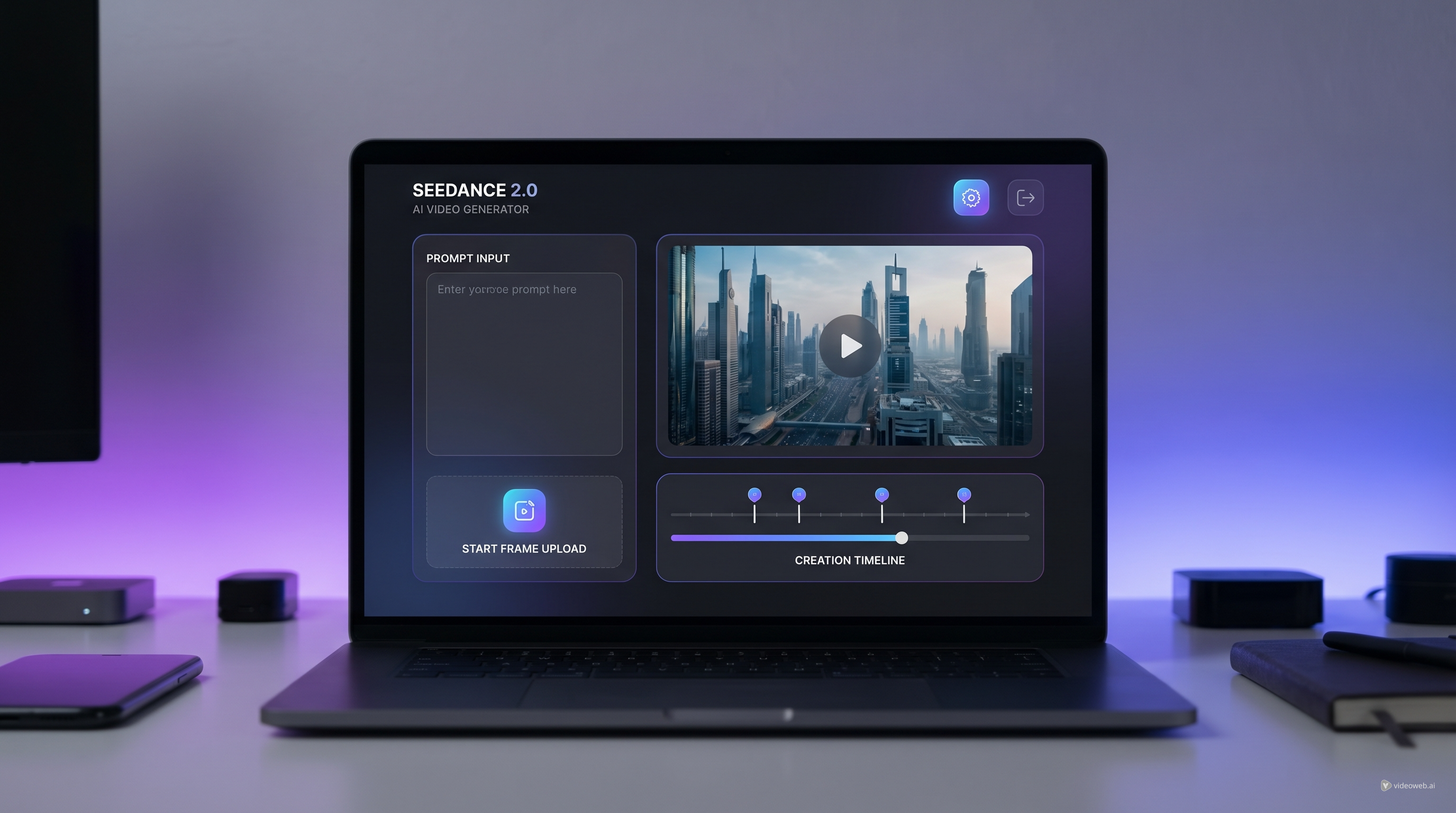
The practical answer is control. Seedance 2.0 video generation is useful because it gives you a stronger sense of structure. On UGCMaker, you can work from prompts, use a start frame, optionally define an end frame, choose duration, set aspect ratio, and build around a more directed result instead of relying only on a vague text input.
This matters most when you want videos that feel intentional instead of random. For example, it can be a strong option for:
- product showcases
- UGC-style ad concepts
- short branded clips
- creator content with clear visual pacing
- experiments that need more continuity than a basic prompt-only model
Another reason people are interested in Seedance 2.0 AI video is that the interface encourages a workflow mindset. You are not just typing a sentence and hoping for magic. You are building a shot with more purpose.
That alone makes it easier to improve over time.
How to Plan Your First Video Without Overcomplicating It
The easiest way to fail with AI video is to start too big.
Do not begin with “make a viral cinematic masterpiece.” Start with something you can evaluate clearly. A good first test should be simple enough that you know what worked and what did not.
Here are four beginner-friendly ideas:
- A product slowly rotating on a clean surface
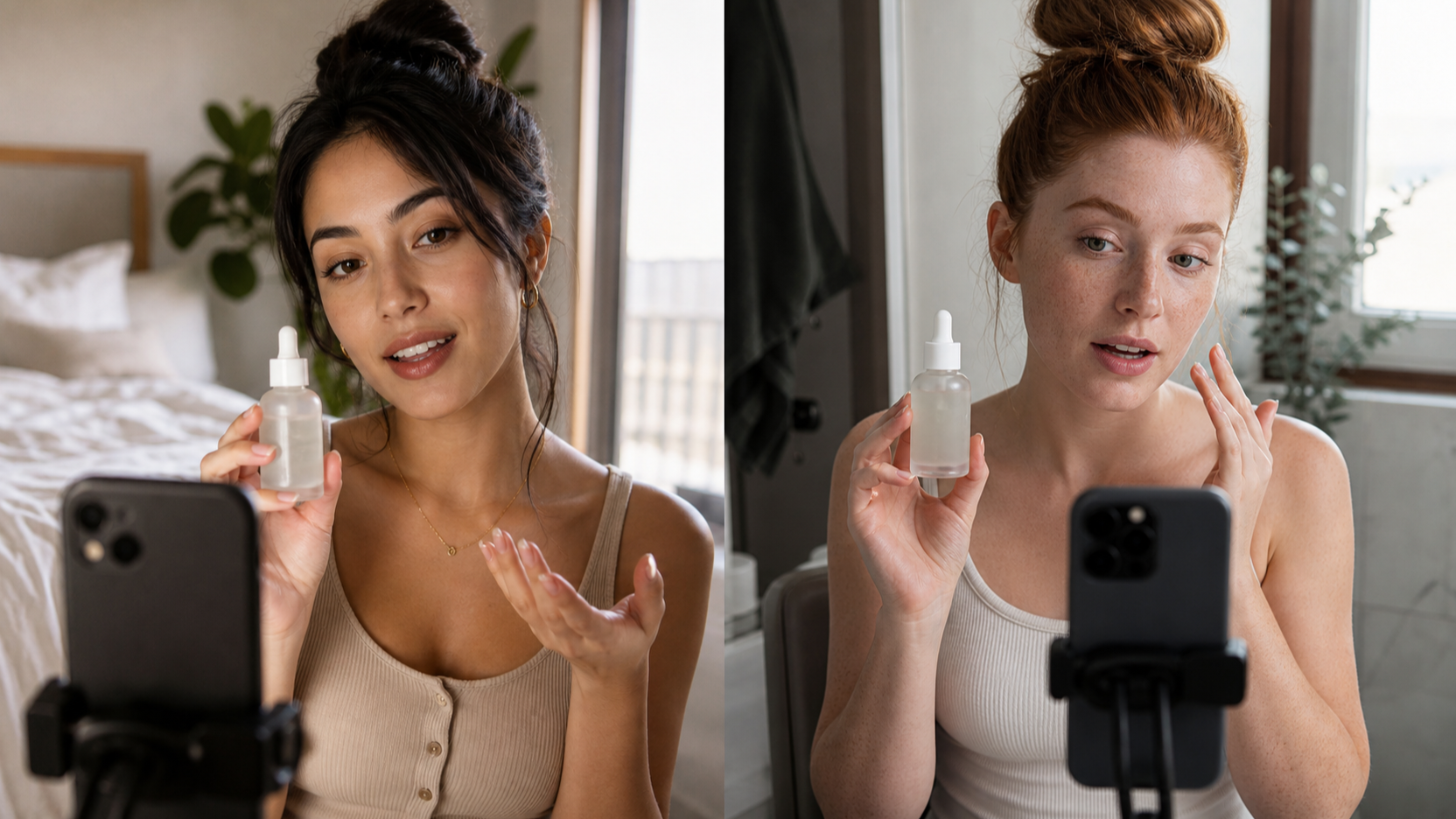
- A creator-style beauty or skincare close-up
- A lifestyle scene with gentle motion and soft camera movement
- A short promo shot built from a strong reference image
For your first run, define these five things before generating:
- subject: what is on screen?
- action: what changes or moves?
- framing: close-up, medium shot, or wide?
- mood: clean, playful, polished, cozy, dramatic?
- format: vertical, horizontal, or square?
This is where AI Seedance 2.0 becomes much easier to use. The model performs better when your idea is compact and readable.
For example, instead of writing:
“Create a luxury skincare advertisement with cinematic motion, emotional atmosphere, perfect realism, glowing lighting, slow camera, lifestyle storytelling, premium branding, smooth hand interaction, studio quality, beauty influence, social media appeal.”
You can write:
“Close-up of a premium skincare bottle on a vanity table, soft morning light, slow camera push-in, clean beauty ad style.”
The second version is easier for the model to interpret and easier for you to judge.
How to Use Seedance 2.0 on UGCMaker Step by Step
Once your idea is clear, the actual process is straightforward.
First, open the Seedance 2.0 access page on UGCMaker. You will see the core controls on the left side, including model version, prompt area, frame inputs, output settings, and generation options.
A clean beginner workflow looks like this:
1. Choose the model version
Pick the current ByteDance Seedance 2.0 option available on the page.
2. Decide whether to use a start frame
A start frame is useful when you already know the look you want. It gives the model a visual anchor and usually produces more predictable results than text alone.
3. Add an end frame only when it helps
Do not feel forced to use both start and end frames right away. End frames are helpful when you want the motion to move toward a specific result, but they can also make early tests more complicated.
4. Write a short, focused prompt
Treat the prompt like creative direction, not a shopping list. Clear visual instructions usually work better than stacking descriptive buzzwords.
5. Set duration, aspect ratio, and resolution
Match these settings to the platform where the video will be used. Vertical is usually better for Shorts, Reels, and TikTok-style content. Horizontal may work better for website headers, presentations, or YouTube inserts.
6. Generate once, then review before changing everything
The first output is a reading tool. Use it to understand what the model understood, what it ignored, and what needs adjustment.
That is the core of a smart Seedance 2.0 AI workflow.
How to Improve Results Without Wasting Credits
A lot of people waste credits because they change too many things at once. Then they cannot tell what actually improved the result.
A better method is to iterate in small steps.
After your first generation, ask:
- Was the composition right?
- Did the motion fit the scene?
- Did the subject stay readable?
- Was the pacing too fast or too flat?
- Did the video match the intended mood?
Then change only one major variable.
If the subject looks wrong, replace or improve the reference image. If the motion feels off, revise the action language in the prompt. If the framing is weak, rewrite the shot direction. If the vibe is unclear, simplify the mood description.
This is the real advantage of using Seedance 2.0 video in a practical way. You can develop a repeatable pattern instead of generating blindly.
It also helps to save prompt structures that work. For example, many users benefit from a simple template like this:
Subject + setting + motion + camera behavior + mood + use case
Example:
“Minimalist coffee cup on a wooden table, light steam rising, slow handheld-style camera drift, warm cozy morning mood, social ad style.”
You can reuse this structure for food, beauty, tech, fashion, and product clips.
When Seedance 2.0 Is the Right Tool
Not every project needs a full-featured video model. Sometimes a still image generator is enough. Sometimes a UGC-focused tool is faster. Sometimes you only need one polished product visual.
But Seedance 2.0 AI video is worth using when motion matters.
It makes sense when you want:
- more visual energy than a static image
- a short clip for ads or social media
- better direction than a simple text-only generator
- experiments with reference-driven motion
- a workflow you can gradually refine
If your goal is “I need a moving concept, not just an image,” then AI Seedance 2.0 becomes much more useful.
Common Mistakes to Avoid
The most common mistake is prompt overload. People assume more detail automatically means more quality. In practice, too many instructions often create a muddy result.
The second mistake is weak inputs. If your reference frame is unclear or visually messy, the output often inherits those problems.
The third mistake is expecting the model to solve a bad concept. Even strong tools still need a readable idea.
Here is a quick checklist:
- keep the idea narrow
- use better references before writing longer prompts
- match the format to the platform
- test one variable at a time
- save your good prompt structures
That is usually enough to move from random clips to intentional ones.
Final Thoughts
The smartest way to approach Seedance 2.0 access is not as a tech demo, but as a creative habit. Start small. Make one clear shot. Learn what the model responds to. Then build a repeatable workflow around that.
Used that way, ByteDance Seedance 2.0 can be a genuinely useful tool for creators, marketers, and anyone testing short-form AI video ideas without jumping straight into a full production pipeline.
Tools to Recommend
- AI UGC Maker for creator-style ad videos and short social content
- AI Image Generator for creating source visuals before turning them into motion
- UGC Image Generator for product and lifestyle-style reference images
- UGC Ads Generator for broader ad creative workflows
Related Articles
- How to Use Seedance 2 to Create AI UGC Ads That Actually Feel Native
- Kling 3.0 UGC Video Generation Guide (UGC Maker AI)
- UGC Image Generator User Guide: How to Create Better UGC-Style Product Visuals Faster
- UGC Video Ads Guide: How to Make UGC Ad Videos With UGC Maker AI
People Also Read
- Seedance 2.0 vs Seedance 1.0: What’s Better for AI Video
- Seedance 2.0 Video Generation Guide: How to Create Better AI Videos
- Seedance 2.0 Video Generation Guide (Tutorial + Prompts)
- The 2026 Image-to-Video Guide for Sea Imagine AI: Best Models & Prompts
- Seedance 2.0 Access and Price Guide: What to Know Now